How to use Floorp MCP Server with OpenCode
· Floorp, MCP, OpenCode, Bun
Introduction
If you are using OpenCode and want your coding agent to interact with the Floorp browser, you can connect them through the floorp-mcp-server package.
This MCP server is from the official Floorp project and is published in the Floorp-Projects/floorp-mcp-server repository.
This setup allows OpenCode to use Floorp as an MCP tool for tasks such as listing tabs, reading page content, opening new tabs, navigating pages, and performing basic browser automation.
In this guide, I will show the exact setup I used with bunx.
Requirements
Before starting, make sure you have:
- Bun installed
- Floorp installed
- OpenCode installed and working
- Floorp running before you try to use the MCP server
You also need to enable Floorp MCP support manually.
Enable MCP inside Floorp
Open Floorp and go to:
about:configThen search for:
floorp.mcp.enabledSet it to:
trueWithout this option enabled, OpenCode will not be able to talk to Floorp even if the MCP server is configured correctly.
OpenCode config location
For a global user-wide setup, OpenCode reads its config from:
~/.config/opencode/opencode.jsonYou can also use a project-level opencode.json, but for a browser MCP like this, a global config usually makes more sense.
Add Floorp MCP server to OpenCode
Edit your OpenCode config file and add the following:
{
  "$schema": "https://opencode.ai/config.json",
  "mcp": {
    "floorp": {
      "type": "local",
      "command": ["bunx", "floorp-mcp-server"],
      "enabled": true
    }
  }
}
Why this config works
type: "local"tells OpenCode this MCP server should be started as a local processcommandmust be an array, not a plain stringbunx floorp-mcp-serverstarts the published MCP package directly without a global installenabled: truemakes the MCP server available when OpenCode starts
Optional manual test
Before testing it through OpenCode, you can check whether the package starts correctly by running:
bunx floorp-mcp-serverIf Floorp is running and MCP is enabled in about:config, the server should start normally.
Restart OpenCode
After saving the config, restart OpenCode or open a new session.
Once loaded correctly, OpenCode should be able to access Floorp tools for actions such as:
- listing open tabs
- reading the current page
- opening a new tab
- navigating to another URL
- clicking elements on a page
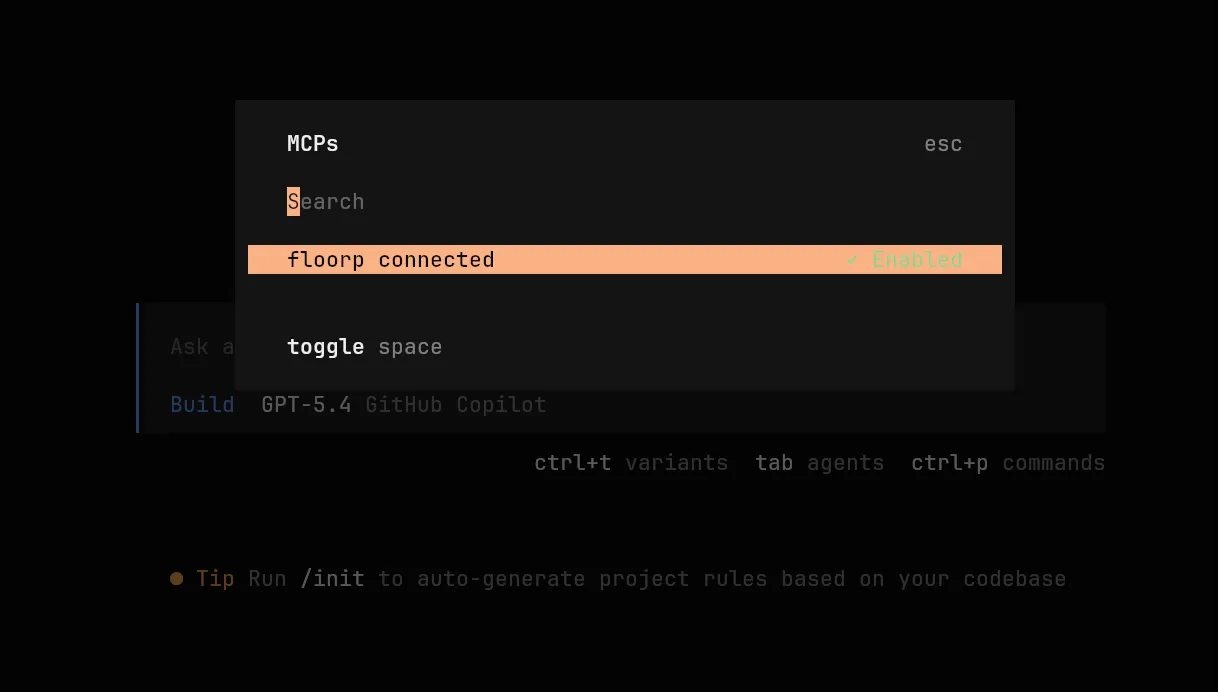
Use /mcp to list all MCP servers
If you want to quickly check whether OpenCode has loaded your MCP configuration, use the /mcp command inside OpenCode.
/mcpThis lists the MCP servers available in the current session. If everything is configured correctly, you should see floorp in the list.
This is useful to confirm that:
- OpenCode read your config file successfully
- the MCP server is enabled
- the
floorpMCP server is available to the current agent
Example prompt
You can test it with a simple prompt like this:
Can you see my Floorp tabs? Use floorp.Or:
Open a new tab in Floorp and go to https://example.com. Use floorp.Troubleshooting
If it does not work, check these items first:
- Floorp is already running
floorp.mcp.enabledis set totruebunx floorp-mcp-servercan start without errors- your OpenCode config is saved in
~/.config/opencode/opencode.json - the JSON syntax is valid
Conclusion
That is all you need to connect Floorp MCP Server to OpenCode.
Using bunx keeps the setup simple, and once it is configured properly, OpenCode can directly interact with your browser through Floorp’s MCP bridge.